For macOS 15 and later · Free during the beta
Press ⌘⇧2.
It already looks designed.
Shottie is a small Mac app for screenshots and screen recordings. Mark them up, set them on a backdrop, and let your clicks turn into smooth zooms. Then paste them anywhere.
Screenshots
From raw capture to ready-to-post, in seconds.
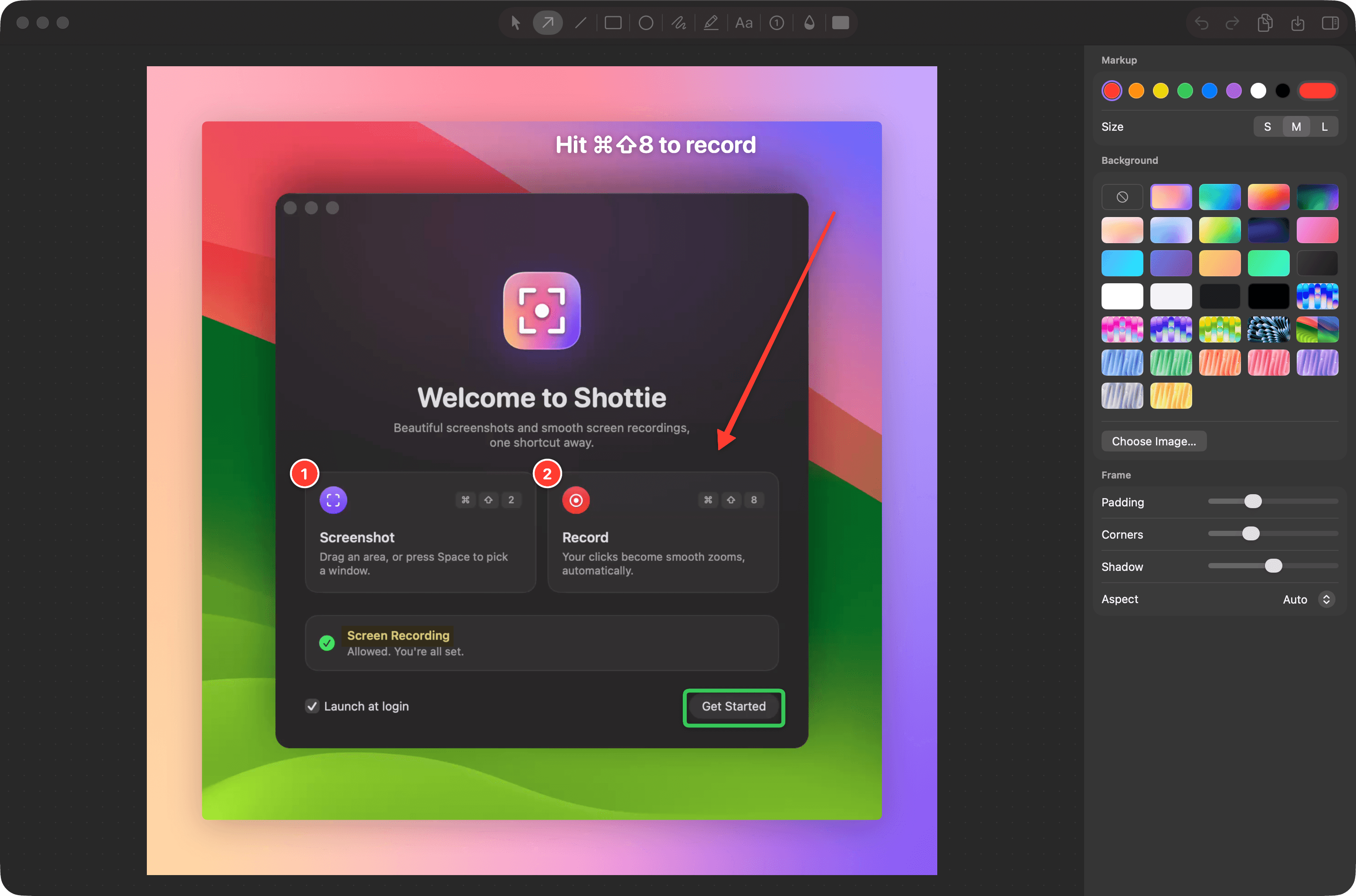
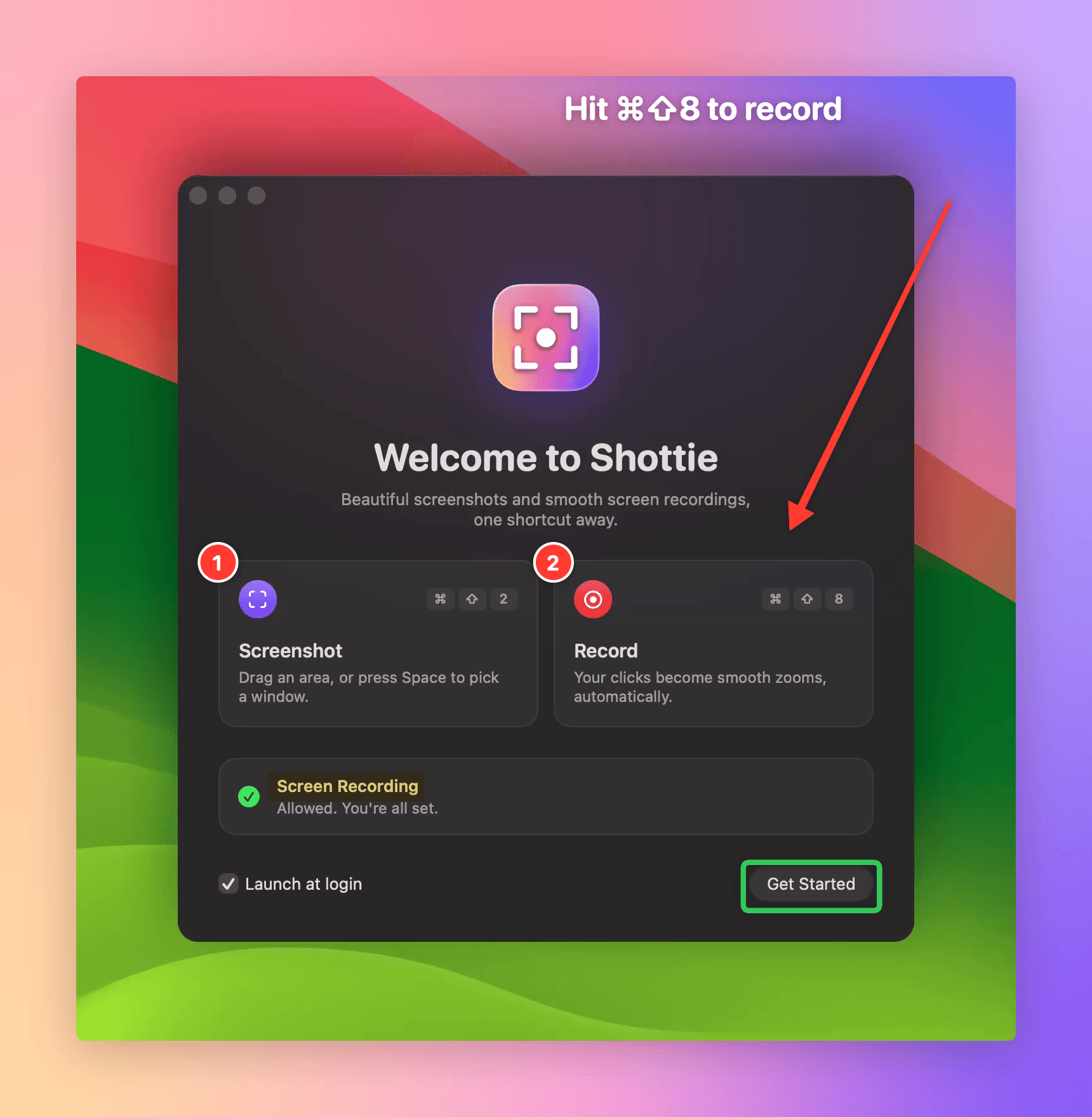
Drag an area or press Space for a window. A thumbnail slides into the corner: drag it into any app, or click it and the editor opens on your favourite backdrop, with padding, rounded corners and a soft shadow already applied. Copy with ⌘C, and it pastes at full Retina resolution.
- AArrow
- RRectangle
- TText
- NNumbered steps
- HHighlighter
- PPen
- BBlur
- CCover
Recording
Your clicks become the camera.
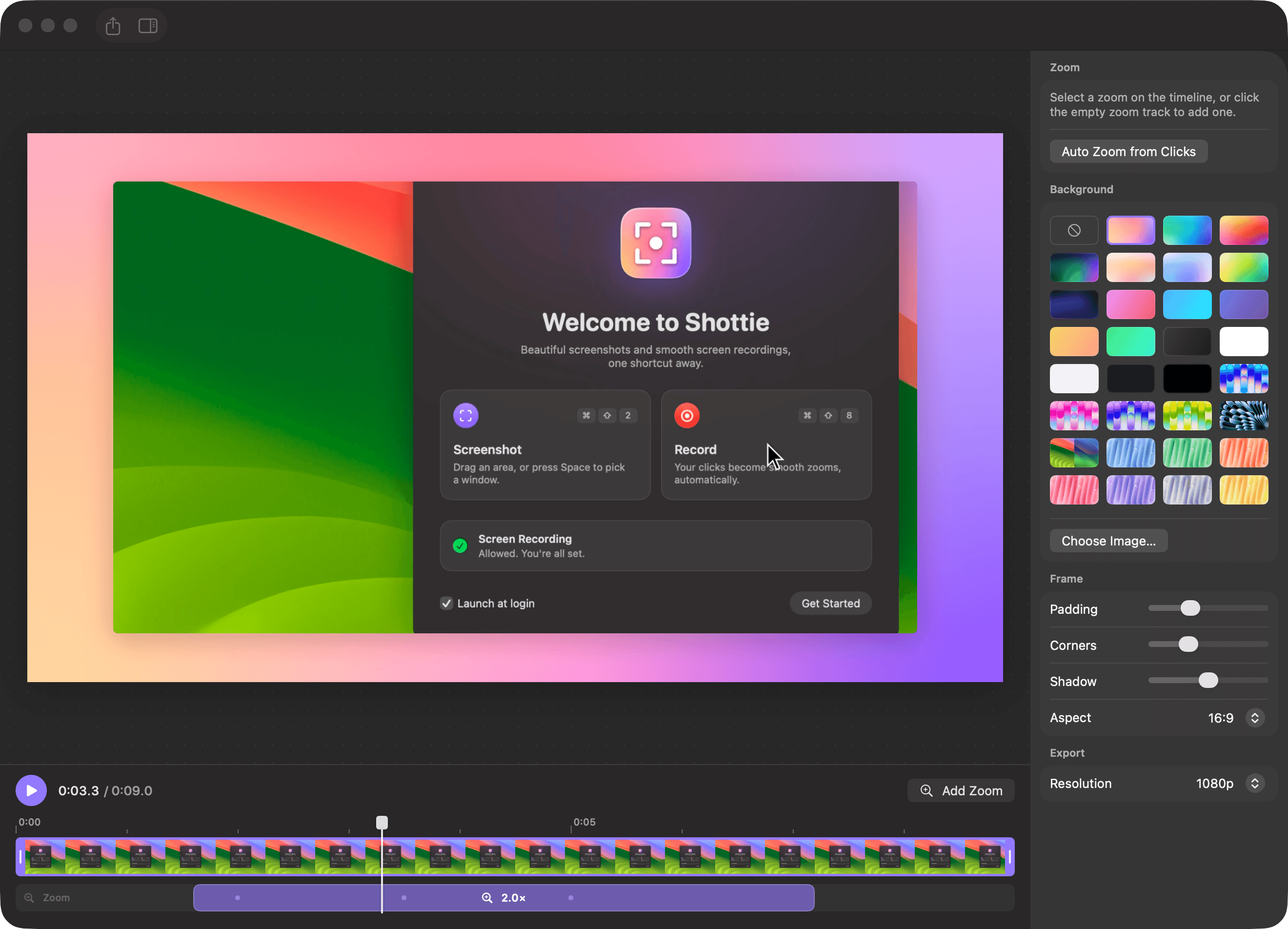
Press ⌘⇧8 and use your Mac as usual. Every click becomes a zoom that eases in just before it happens and follows your cursor after, so viewers always see what you did.
to reach 90% of a zoom. A critically damped spring: quick, then it settles without overshoot.
rendered at a constant rate, even while the screen sits still, so zooms never stutter.
of the view is a calm zone. The camera only moves when your cursor leaves it, so the shot holds steady.
Change any zoom after recording.
Drag a zoom along the timeline, stretch it, set its level, or click the video to pin where it looks. Trim the ends, pick a backdrop, and export an MP4 at 1080p or 4K. Microphone and system audio come along.
Free tools
Try the editor in your browser.
The same backdrops, arrows, blur and frames as the app, free and without a sign-up. Your image never leaves your browser.
Details
What else it does
Lives in your menu bar
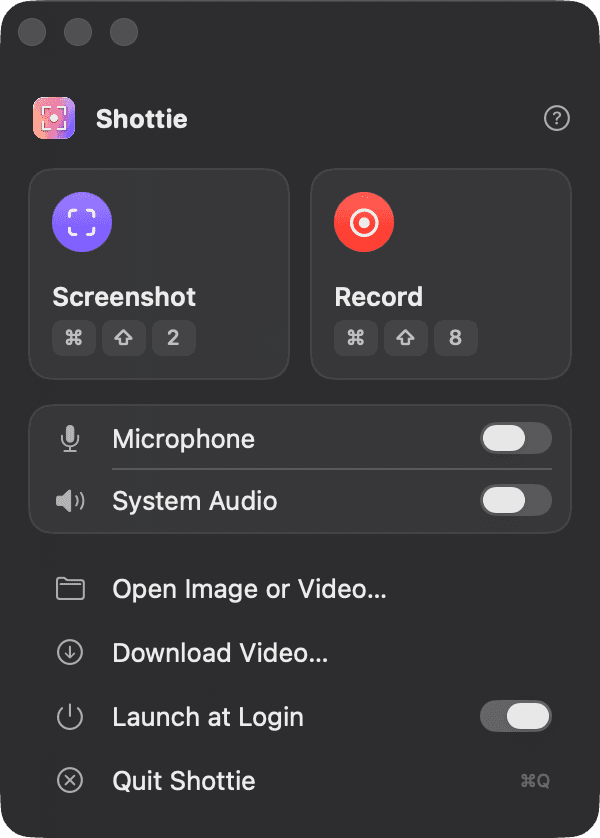
Screenshot and Record sit up front, with switches for microphone and system audio. A Dock icon appears only while you are editing.
Backdrops that fit
Mesh and linear gradients, solid colours, your macOS wallpapers or any image, with 16:9, 4:3, 1:1 and 4:5 frames.
Hide what matters
Blur and Cover take care of emails, keys and names before anything leaves your Mac.
Native, not a web page
Built with SwiftUI and ScreenCaptureKit. Universal for Apple silicon and Intel.
Stays on your Mac
There is no account and nothing is uploaded. Screenshots go to your clipboard or Desktop, and videos to your Desktop.
Opens what you already have
Edit any image or video from Finder with Open With, including recordings from other apps.
One click from anywhere.
Click the menu bar icon for Screenshot and Record, the audio switches, and Open for files you already have.
Free while it's in beta.
After the beta, Shottie will be a one-time purchase rather than a subscription.
Public download coming soon
Questions
What do I need?
A Mac running macOS 15 Sequoia or later, on Apple silicon or Intel.
What does it ask permission for?
Screen Recording, so it can capture your screen. Microphone only if you turn on narration. Shottie explains both before macOS asks.
Does anything get uploaded?
No. There is no account and no cloud. Screenshots go to your clipboard or Desktop, and videos export as MP4 files to your Desktop.
Can I change a zoom after recording?
Yes. Zooms are blocks on the timeline: move them, resize them, change their level, pin their focus, or delete them. You can also add your own.
What formats does it export?
Screenshots as PNG at your display's native resolution. Videos as H.264 MP4 at 60 fps, in 1080p or 4K, with audio if you recorded it.